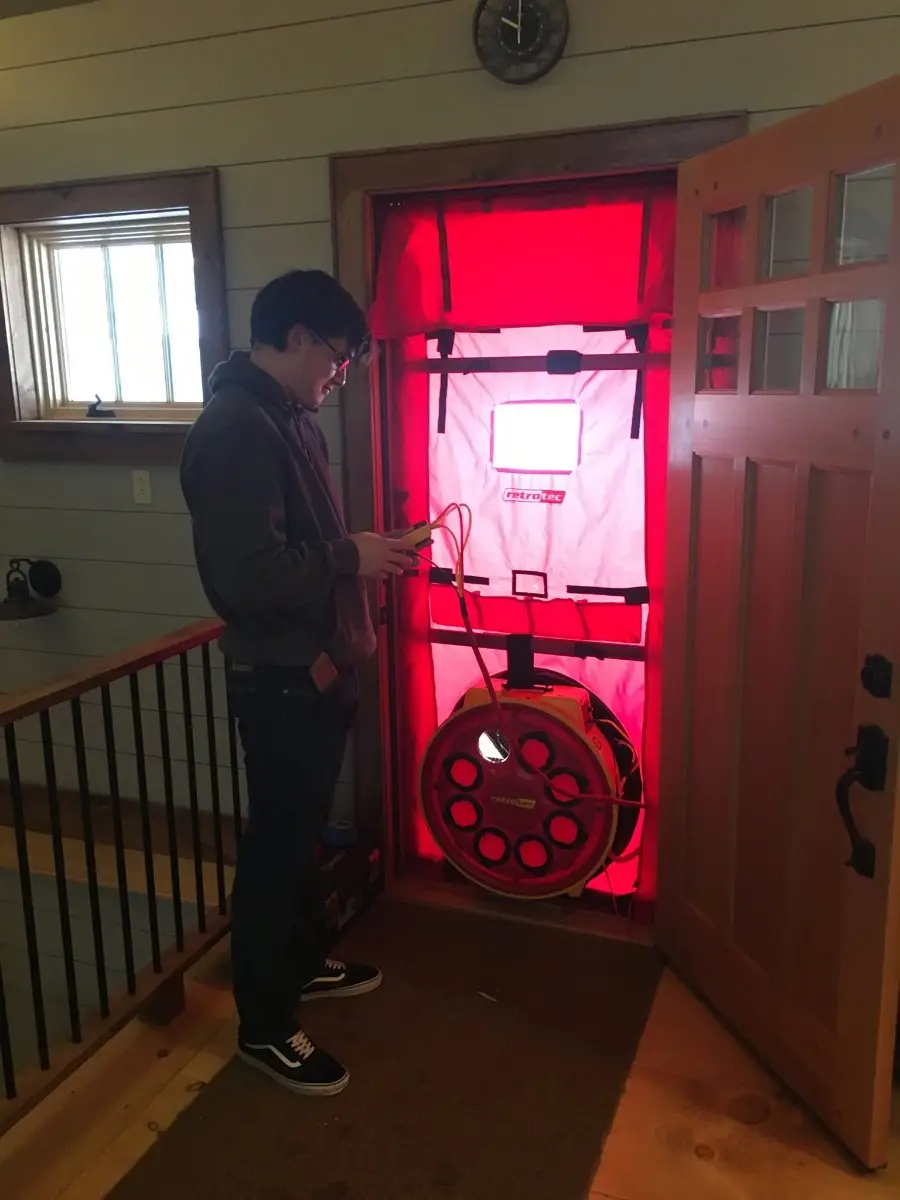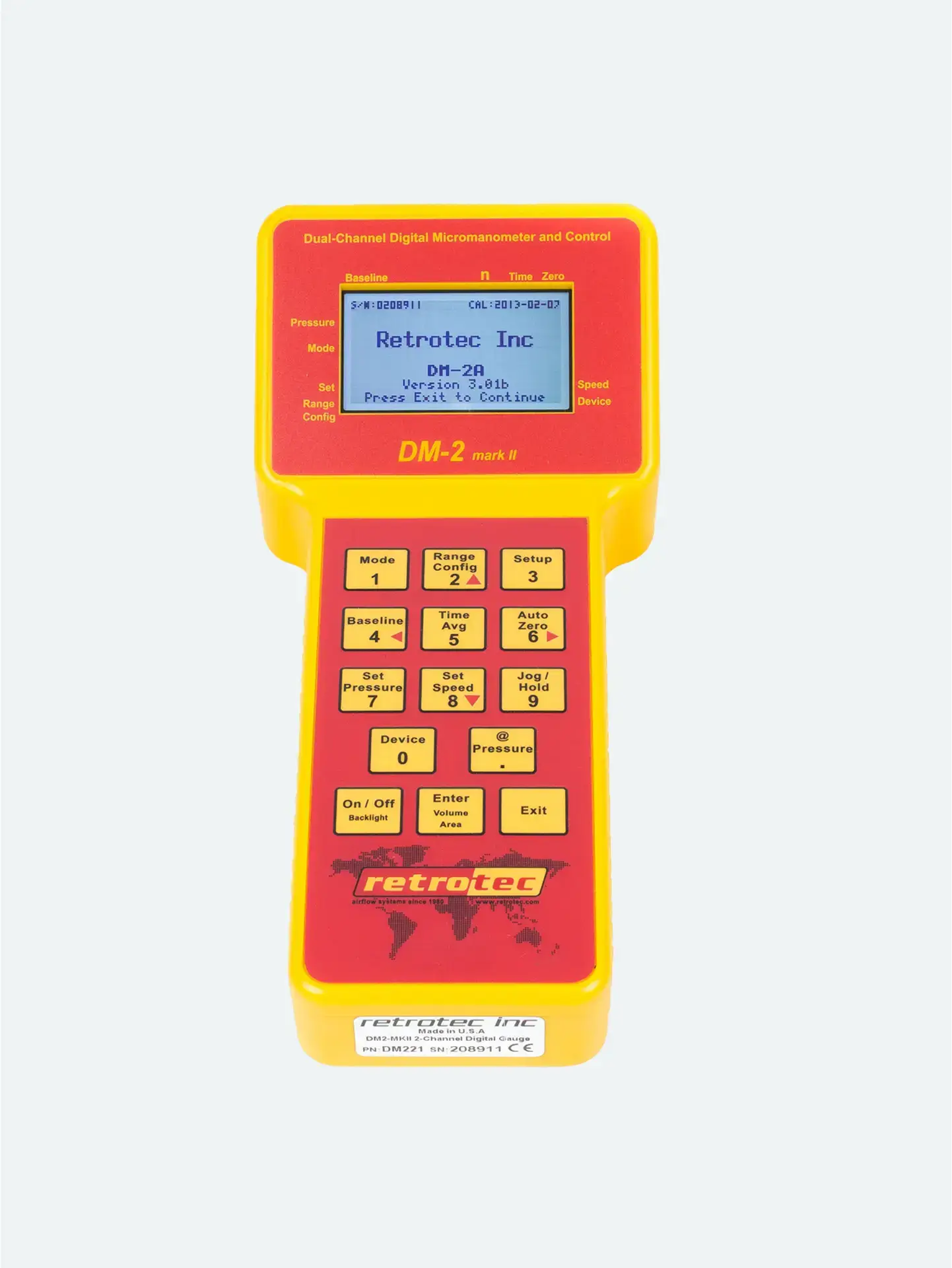

Your digital gauge (e.g., DM‑32 or DM‑2) must be configured to match:
The connected equipment (e.g., blower door fan or DucTester model)
The installed flow restriction (range ring or plate) on the fan
If these don’t align, the gauge won’t calculate airflow correctly. Data may be off—or unusable entirely.
On the gauge’s Home screen, tap “Range/Device”
If your device isn’t listed, tap “Change Device” to select the correct one
Choose the exact model you’re using (e.g. “DU200 DucTester”, “Model 3350SR blower”).
This aligns the gauge’s calculations with the fan’s performance characteristics.
Select the installed restriction (e.g. small/medium/open).
The gauge uses this to determine the airflow curve correctly.
When you return to the Home screen, top-bar icons will show:
Device name
Range setting
Result mode ready (e.g., CFH@50Pa on Channel B)
Always check after power-cycle: Gauges remember the last-used settings, which may not match your current test setup
Double-check before testing: A mismatch—like selecting an “open” range when a restricted ring is installed—can result in wildly incorrect readings
Correct mistakes early: If you notice odd or off-scale values, revisit the Device/Range menu before capturing data